
Business System Integration Guide
The workflow + form engine integrates with various business systems. The business system displays pending and completed task lists on its own pages; when users process tasks, they are redirected to the workflow approval page.
Integration consists of two phases: workflow engine preparation (deployment, organization structure, unified authentication) and business system integration (API calls and page redirection).
1. Workflow Engine Preparation
Complete the following before the business system calls workflow APIs.
| Step | Description | Reference |
|---|---|---|
| 1. Deploy the product | Deploy a development environment for organization and unified identity integration | Development Environment Deployment |
| 2. Organization structure | Read and sync organization data from the business system | Organization Integration |
| 3. User authentication | Maintain unified login with the business system | Authentication Integration |
Testing vs. Production
- Online use: During public network testing, organization sync is optional — use built-in workflow accounts for testing. In production, sync organization data from the business system.
- Local deployment: During testing, use the workflow engine's built-in organization data. For production integration, sync organization data from the business system.
2. Business System Integration
After engine preparation, integrate workflow capabilities in the business system as follows.
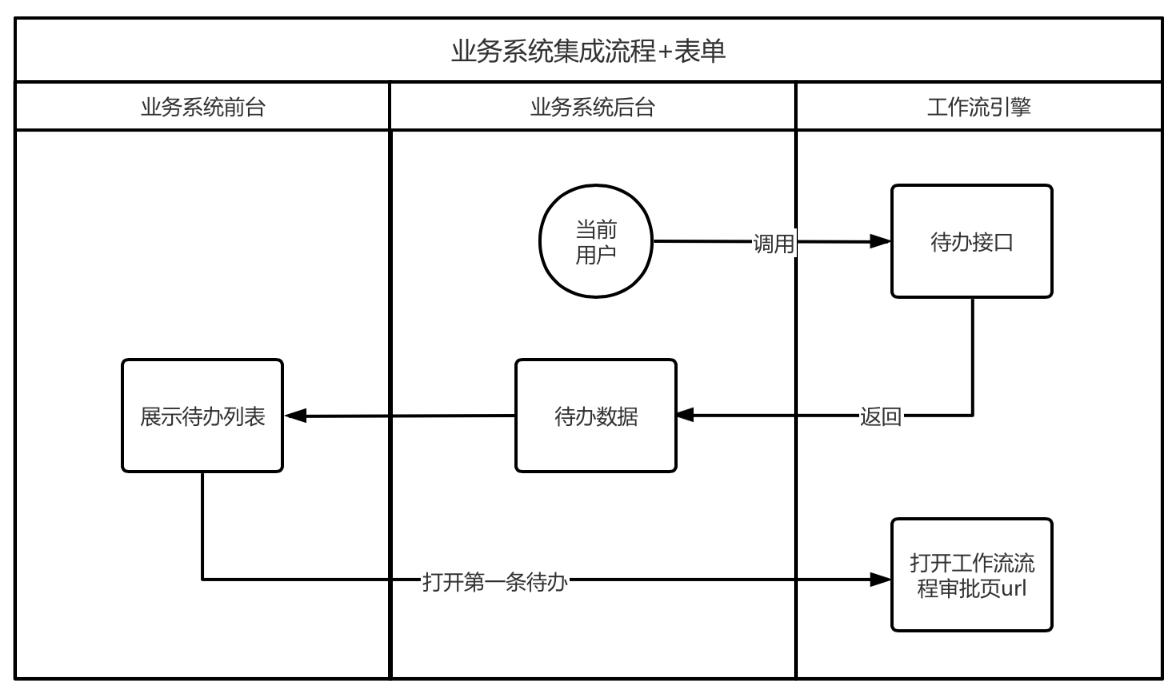
Integration Steps
- The business system calls workflow APIs (pending tasks, completed tasks, etc.) to display list data
- When the user clicks to view details, redirect to the workflow approval page for processing
Workflow Engine API Reference
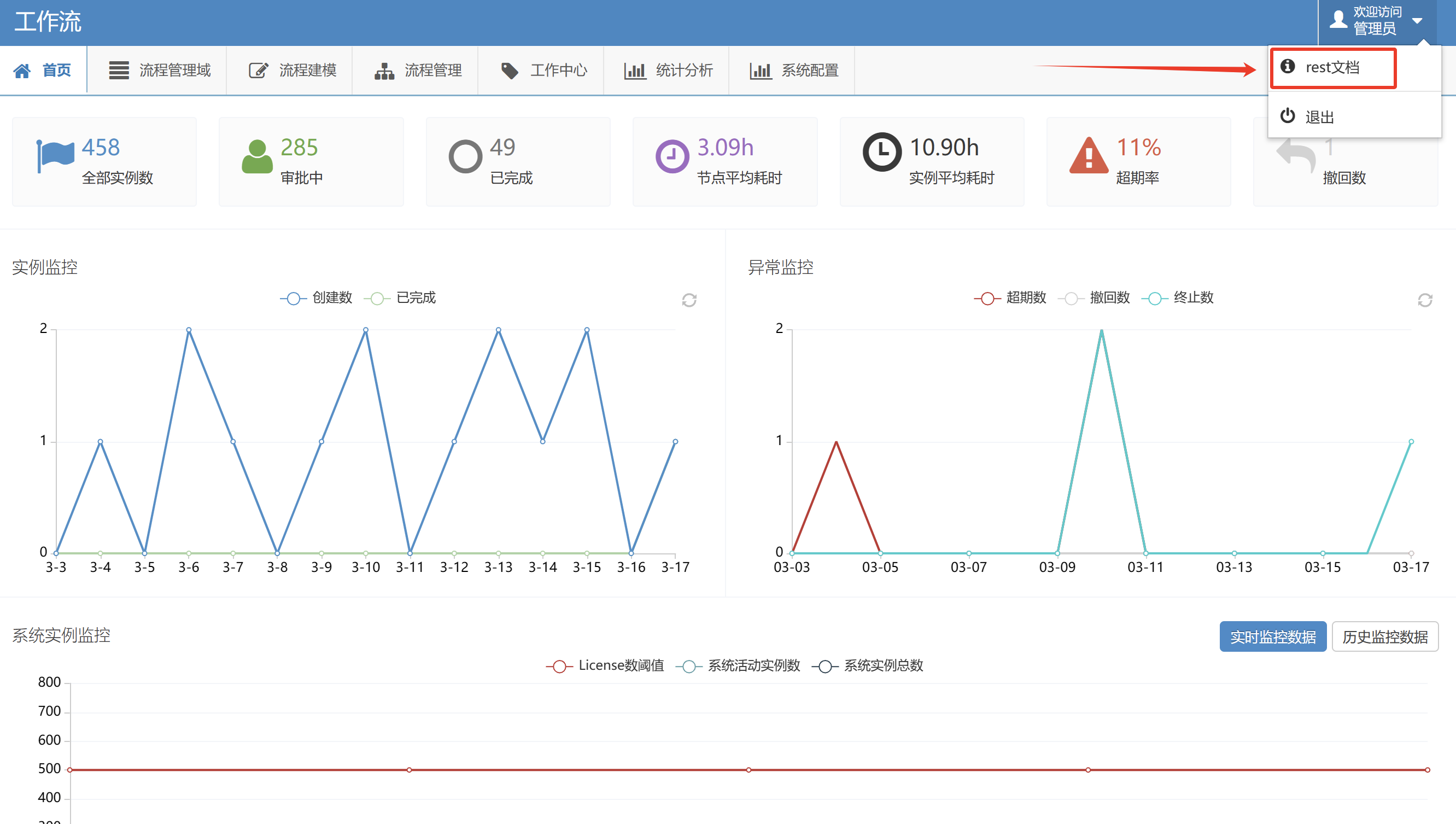
After logging in to the workflow system, the REST Documentation entry is available in the top-right corner:
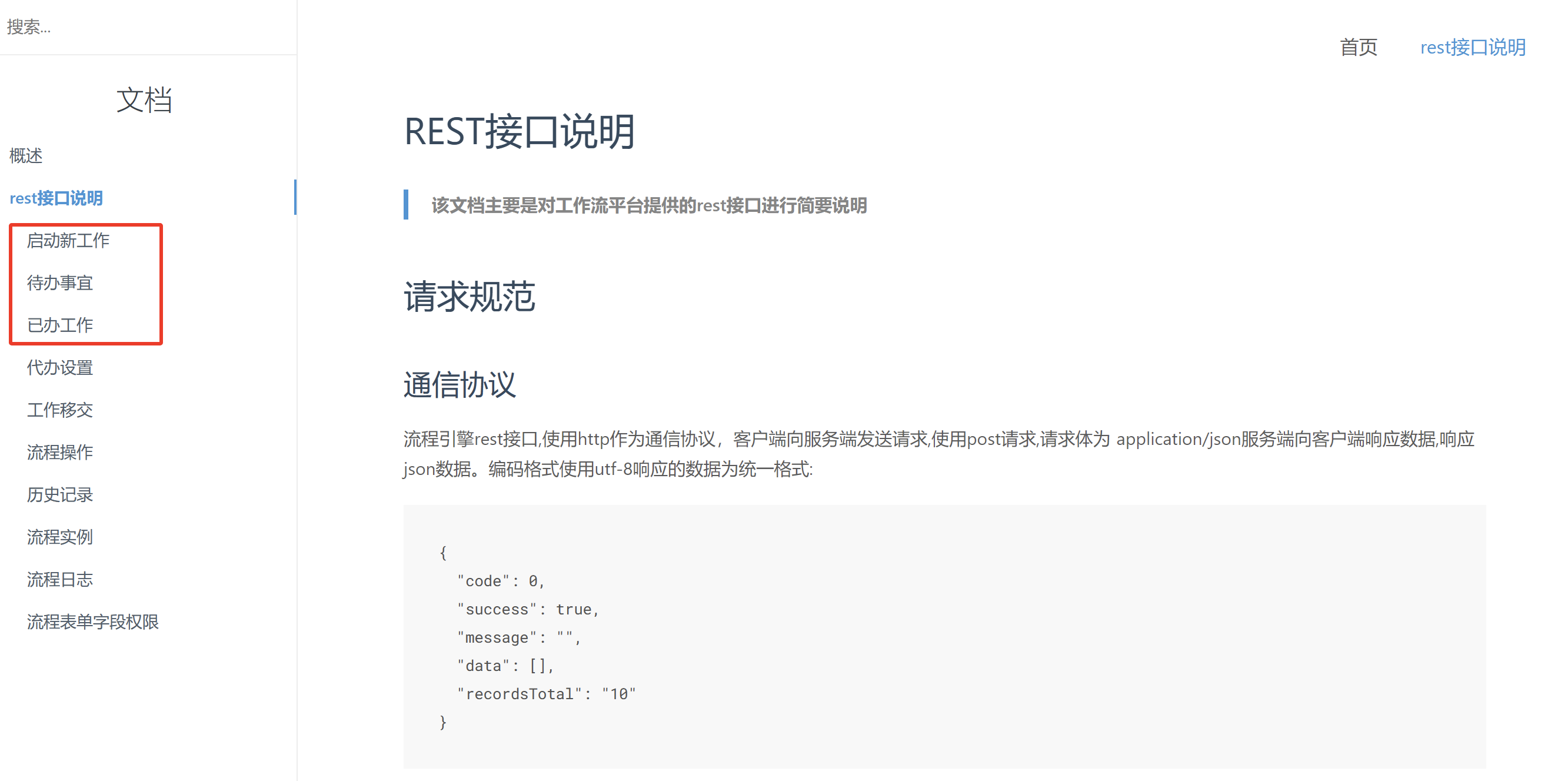
Call the appropriate APIs based on your business requirements to retrieve pending tasks, completed tasks, and other list data.
Workflow Approval Page
When processing pending tasks or starting a new process, open the workflow page directly.
Start a Process
The "Start New Work" API returns all processes the current user is authorized to initiate. Click a process to open the process initiation page:
/workflow/module/workflow/index.html?flowId=&accessToken=Parameters:
| Parameter | Description |
|---|---|
flowId | Process model ID, returned by the Start New Work list API |
accessToken | Token returned by the login API (not required if unified authentication is implemented) |
Example:
http://127.0.0.1:9003/pt82/workflow/module/workflow/index.html?flowId=NewFlowIdcccc&accessToken=Process a Task
When processing a pending task or viewing a completed task, open the workflow approval page:
/workflow/module/workflow/index.html?workId=HZ28811c868127c20187e5da9dcd02e2&trackId=HZ28811c868127c20187e5da9dcd02e3&subjection=D_HZ28e7f51e816d28011e816da7f1001f&accessToken=Parameters:
| Parameter | Description |
|---|---|
workId | Process instance ID, obtained from pending task data |
trackId | Process path ID, obtained from pending task data |
subjection | User identity, obtained from pending task data |
accessToken | Token returned by the login API (not required if unified authentication is implemented) |
Example:
http://127.0.0.1:9003/pt82/workflow/module/workflow/index.html?workId=HZ28811c868127c20187e5da9dcd02e2&trackId=HZ28811c868127c20187e5da9dcd02e3&subjection=D_HZ28e7f51e816d28011e816da7f1001f&accessToken=